TL;DR
Most advertisers cannot turn off ad comments with one switch; Comment Controls is limited to some accounts. The realistic routes are Comment Controls if you have them, turning comments off on a Page post then boosting it, or leaving comments on and filtering them. Most advertisers keep comments so genuine questions remain and hide spam as it arrives; AFP can moderate Ads Manager and Instagram ads while still answering real comments.
Can you turn off comments on Facebook ads?
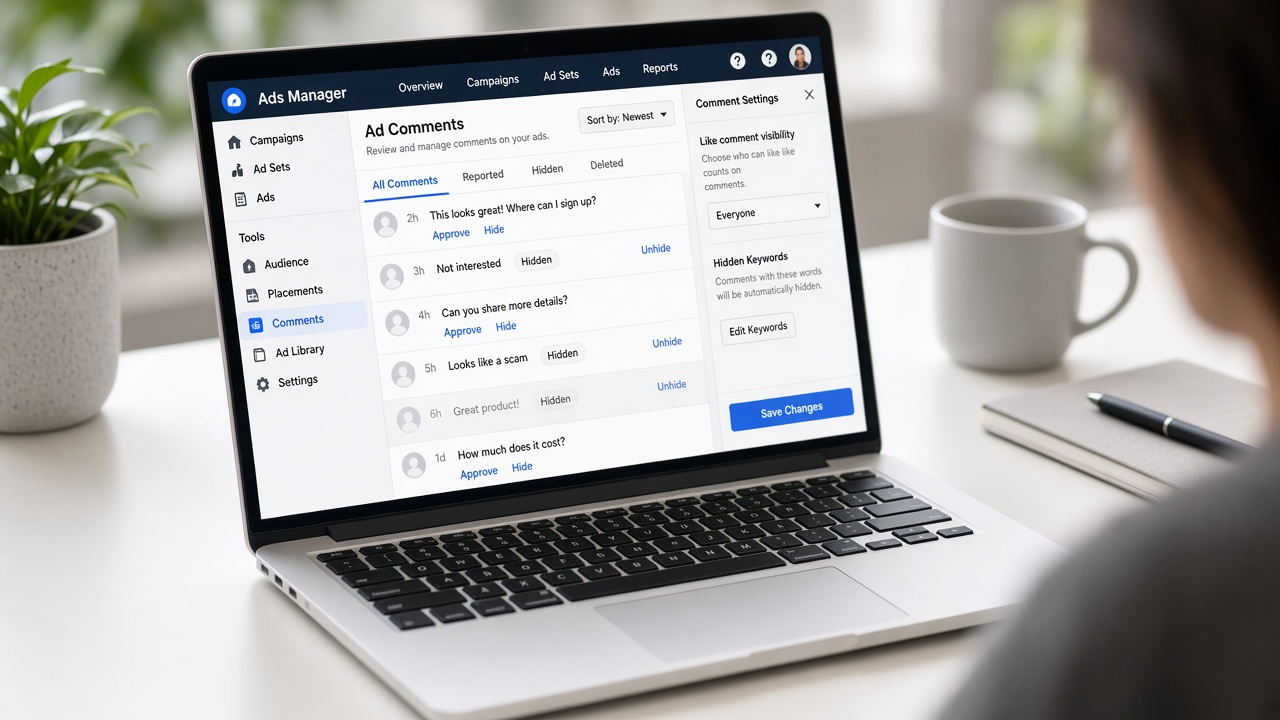
Usually not with a single switch. Meta's help centre puts it plainly: "For most advertisers, anyone who can see your Facebook, Instagram or Threads ad can react to it or comment on it." In October 2024 Meta announced Comment Controls, an ad set setting that turns comments off on Facebook and Instagram feed ads. Meta describes it as available to "a limited number of businesses", and most advertisers still don't see it.
So in practice you have three realistic routes:
- Use Comment Controls if the option shows up in your ad set.
- Turn off commenting on a Page post first, then promote that existing post as your ad.
- Leave comments on and filter them automatically. Spam and scam links get hidden the moment they arrive, and real questions still get answered.
Most advertisers end up on route 3, because a comment section full of genuine questions is worth keeping. This guide covers all three, plus the free Meta tools that help along the way.
Your options at a glance
| Option | Who can use it | Covers ads made in Ads Manager | Keeps genuine comments | Effort |
|---|---|---|---|---|
| Comment Controls ("No one") | Only accounts in Meta's test | Yes, Facebook and Instagram feed ads in that ad set | No: nobody can comment | Low |
| Turn off comments on the Page post, then use it as the ad | Anyone with a Facebook Page | No. Only ads built from that existing post | No | Medium: repeat for every creative |
| Meta's free filters (hidden words, Moderation Assist) | Anyone with a Page or Instagram account | Moderation Assist: yes, per Meta. Other filters: check in your account | Yes | Low, but hide-only |
| Automated moderation with AFP.MONSTER | Anyone with a Facebook Page or Instagram business account | Yes, including Ads Manager ads and Instagram ads | Yes, and questions can be answered | Low after setup |
Option 1: Comment Controls in Ads Manager (if your account has them)
Meta announced Comment Controls during Advertising Week in October 2024. PPC news site ppc.land described the setting like this (official Meta article: Manage comments on your ads in Meta Ads Manager):
- It lives at the ad set level as an inventory filter.
- It has two values: Public (the default) and No one.
- "No one" turns comments off on all Facebook and Instagram feed ads in that ad set.
To check whether you have it (Meta renames menus often, so look for these words rather than an exact path):
- Open Ads Manager and edit the ad set.
- Scroll to Placements and open the extra options.
- Look near the Inventory filter settings for a comment control.
- If it's there, choose No one and publish.
If you don't see it, your account isn't in the test yet.
Limits: it covers feed placements in that ad set only, and it removes every comment, including the "do you ship to Canada?" questions that turn into sales.
Option 2: Turn off comments on the Page post, then run it as the ad
This is the classic workaround: limit commenting on a Page post, then run that post as the ad. Meta doesn't document exactly how the post's comment setting carries over into every placement, so treat it as a workaround and check the live ad on both Facebook and Instagram after it's published.
- Publish the ad creative as a normal post on your Facebook Page.
- On the post, open the … menu and look for the option that controls who can comment (the wording changes between Page versions). Pick the most restrictive option available.
- In Ads Manager, create the ad and choose Use existing post. Select that post.
- Publish the ad.
Limits:
- You have to repeat this for every creative.
- It doesn't help ads that were already built directly in Ads Manager, because those have no Page post setting to switch.
- The post sits on your Page timeline.
Option 3: Keep comments on and filter them with Meta's free tools
If you can't turn comments off, the next best thing is to stop the worst of them from showing. Meta gives you two free filters on Facebook and one on Instagram:
- Hidden words / keyword filtering. In your Page settings, open Privacy → Public posts → Hide comments containing certain words (or Content moderation on some Pages). You can add up to 1,000 words or emojis, and they also apply to ad comments.
- Moderation Assist (Facebook, in the Professional Dashboard). Meta's help centre describes rules that hide new comments with links, images, videos or custom keywords. It says Moderation Assist "only hides comments on your Page, profile or ads that you run", and only comments made after you create the rule.
- Hidden Words (Instagram). Hides comments containing words you list, plus comments Instagram considers offensive.
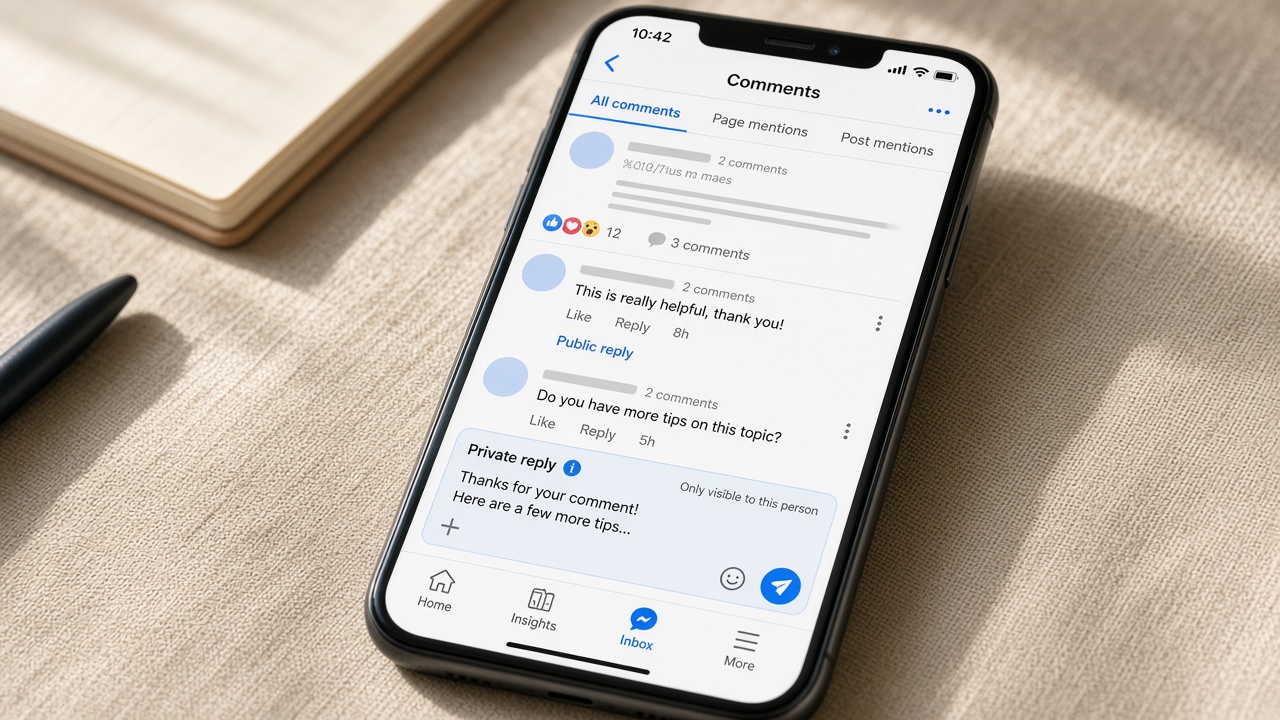
A hidden comment isn't deleted. It stays visible to the person who wrote it and their friends, so spammers usually don't notice and don't repost.
Where the free tools stop: they only hide (no reply, no DM), they act on new comments only, and they're set up one Page or account at a time, so agencies repeat the work for every client.
Option 4: Keep comments on and automate the cleanup with AFP.MONSTER
AFP.MONSTER automates comment moderation and replies on Facebook Pages and Instagram business accounts, for creators, shops and agencies.
For this problem, AFP gives you two things the free tools don't: actions beyond hiding (delete, block, reply, DM) and a Cleaner for comments that are already there. It works on organic posts too, not only ads.
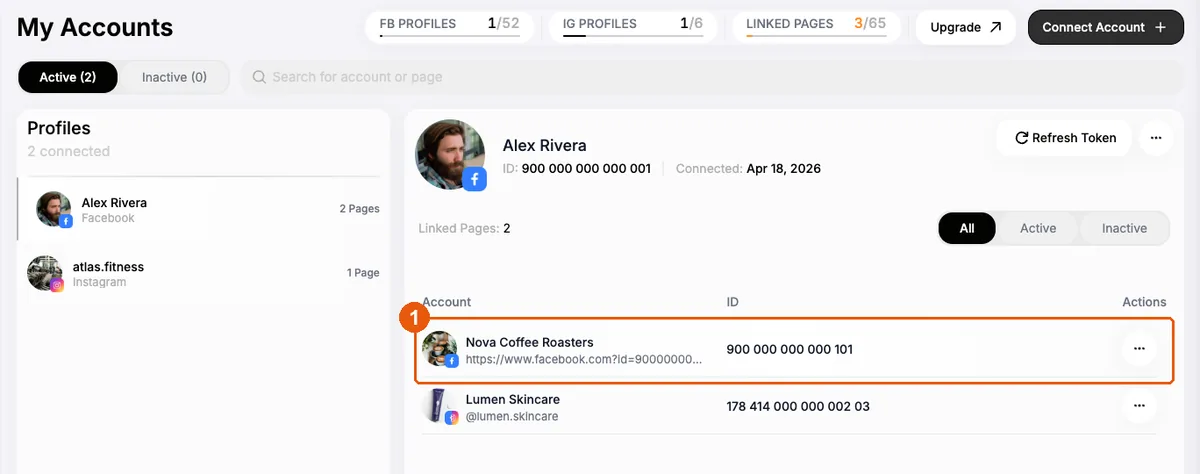
Step 1: Connect your Page
Log in with Facebook, choose the Pages you want, and approve access. An Instagram business account linked to one of those Pages comes along with it. See Connect a page.
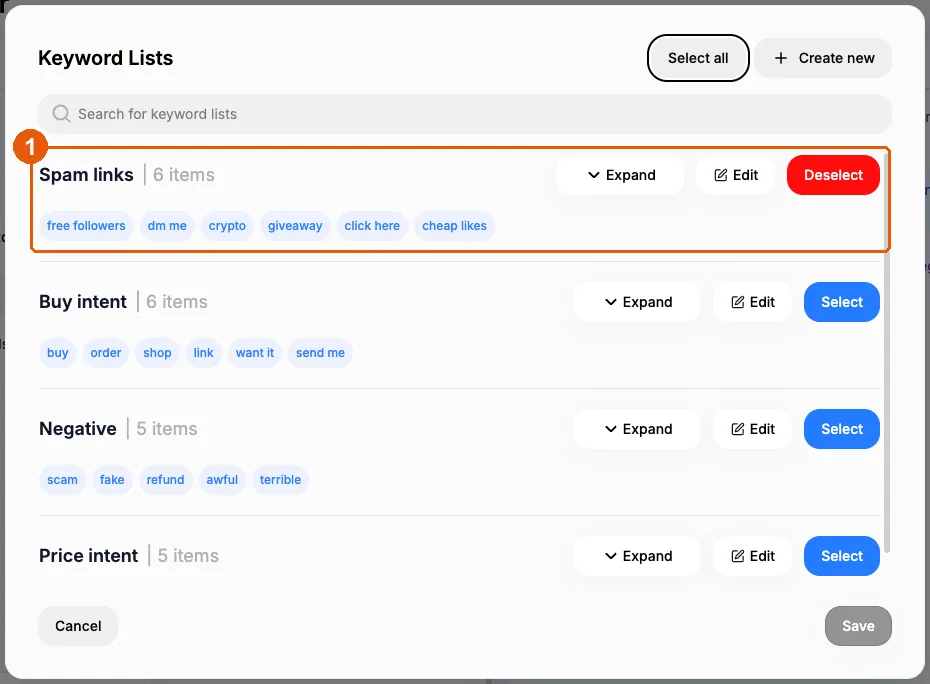
Step 2: Build a keyword list of what you never want to see
Create a keyword list with your spam patterns: scam phrases, "check my profile", competitor names, words you've seen in bot comments. Matching ignores letter case, and one list can be reused across campaigns and pages. See Match comments with keyword lists.
Step 3: Create a hide campaign
On the campaign canvas:
-
Add a comment trigger set to watch all posts on the Page (or one specific post).
-
Connect it to a condition set to your keyword list. Optionally turn on the link, image or GIF filters to catch spam that carries no keywords.
-
From Match, add a hide comment node. On Facebook you can also tick the option to block the author in the same step. Blocking isn't available on Instagram.
-
Save the campaign and switch it Active.
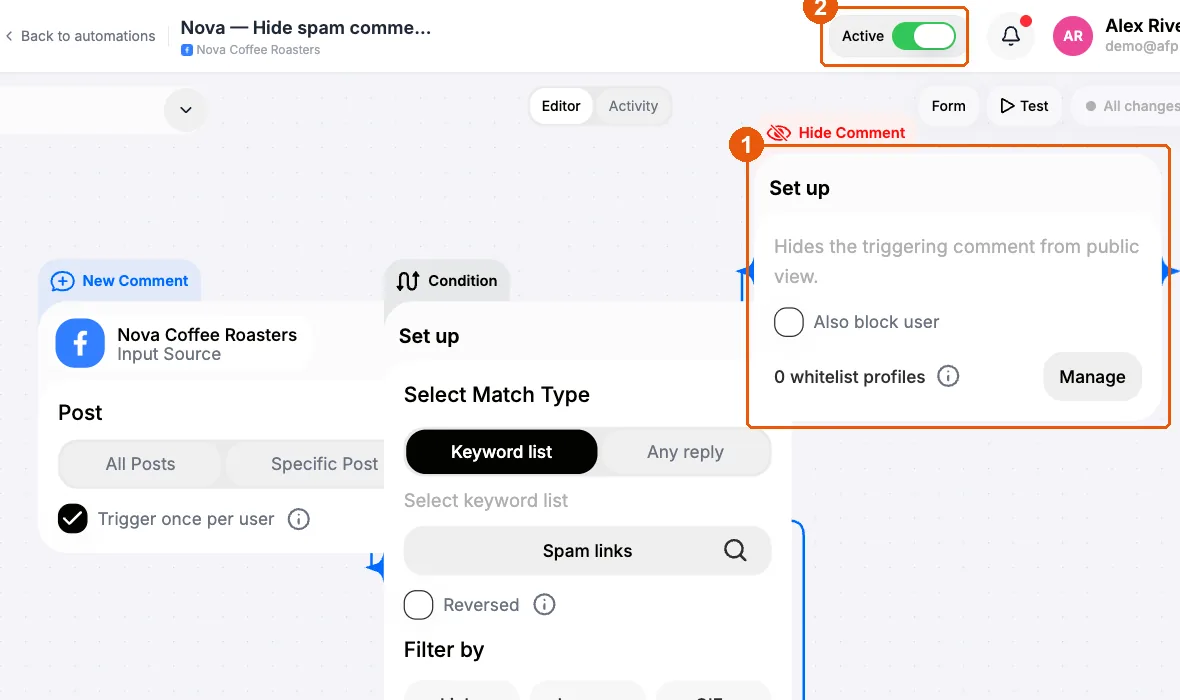
From then on, matching comments are hidden as they arrive. Every action is listed in Activity, where you can unhide anything that was caught by mistake. See Moderate comments.
Want the closest thing to "comments off"? Set the condition to any message and connect it to hide comment. Every new comment is hidden as it arrives. Use this sparingly; the next section explains why.
Step 4: Answer the questions you want to keep
Run a second campaign on the same Page for buying questions. Use a keyword list with words like "price", "shipping" or "size":
- reply publicly under the comment, so other readers see the answer;
- then send a DM with the details (text, an image, a product card, or buttons).
Both campaigns can run side by side: every plan allows more than one campaign (Starter includes 15). A comment that matches both lists starts both campaigns, so keep the lists distinct. See Route comments to a DM.
Step 5: Clear what's already there
Campaigns act on new comments only. For the backlog, run the Cleaner:
-
Pick the Facebook Page.
-
Attach the keyword list.
-
Choose hide, delete or both.
-
Set a date range.
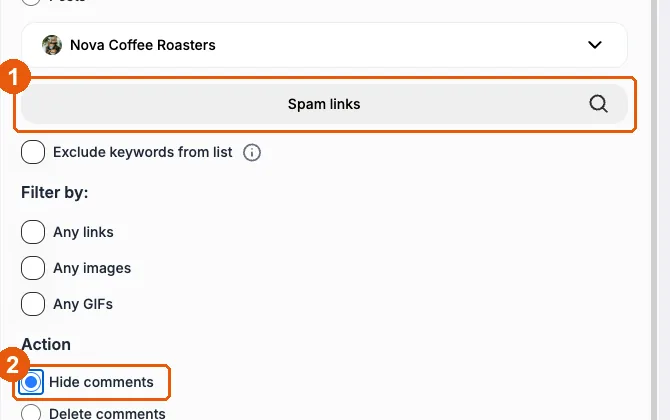
In comments mode it reads comments on the Page's own posts and its ad posts. Two cautions:
- Delete can't be undone.
- A Cleaner job with no keyword list matches every comment in range.
The Cleaner needs a paid plan; it isn't available on the trial. The full spam playbook is in How to Stop Spam Comments on Facebook Ads, and bulk cleanup has its own guide: How to Bulk Delete Facebook Comments.
What it costs
Personal plans start at $15/month (Starter), with Pro at $25 and Scale at $70. Team plans for agencies start at $119/month. Every plan starts with a 3-day free trial, no card required, and you can pay by card or crypto. See pricing and the feature overview.
Should you turn comments off at all?
Before you reach for the off switch, weigh what you lose. With comments off there's no spam, but there are also no questions, reviews or social proof under the ad, and no extra sales from answering them. With comments filtered, the spam is hidden while genuine questions stay visible and can be answered publicly or followed up by DM.
Turning comments off makes sense for sensitive topics, or for a short burst of abuse you can't keep up with. For most shops, creators and agencies, hiding the spam and keeping the conversation is the better trade.
Try it free: connect your Page and switch on a hide campaign in a few minutes. 3-day trial, no card. Start free →